You open About This Mac, click Storage, and see a massive gray block labeled System Data. Your photos take up 20GB. Your apps, maybe 30GB. But System Data? 80GB. Sometimes 150GB. Once in a while, an absurd 300GB.
And unlike Photos or Documents, you can't just open a folder and start deleting things. System Data is a catch-all — macOS dumps everything it can't categorize anywhere else into it. That makes it both frustrating to understand and a bit nerve-wracking to touch.
Here's what's actually in there, and how to get rid of the parts you don't need.
What Is "System Data" on Mac?
System Data is macOS's way of labeling all the files that don't fit neatly into other categories — Applications, Photos, Music, and so on. It typically includes:
- Cache files — temporary data created by apps and the system to speed things up
- Log files — records of what your apps and system have been doing
- Time Machine local snapshots — backups stored locally when your external drive isn't connected
- iOS device backups — full iPhone/iPad backups you may have forgotten about
- Developer caches — Xcode build artifacts, simulator data, npm packages, Docker images
- Browser data — downloaded files, offline storage, service worker caches
- Miscellaneous system files — virtual memory swap files, Spotlight index, font caches
The reason System Data can get so large is that most of these files grow quietly over time. You install a few apps, run some builds, plug in your iPhone a few times — and suddenly your System Data is 120GB.
1. Delete Time Machine Local Snapshots
This is usually the biggest culprit. When Time Machine can't reach your backup drive — because it's unplugged, or you're on the go — it saves local snapshots directly to your Mac's internal storage. Each snapshot can be several gigabytes, and they stack up quickly.
To see how many you have, open Terminal and run:
tmutil listlocalsnapshotdates
You'll get a list of dates like 2026-03-01-120045. Each one is a snapshot taking up space. To delete a specific one:
tmutil deletelocalsnapshots 2026-03-01-120045
Or to nuke all of them at once:
for d in $(tmutil listlocalsnapshotdates | grep -v :); do tmutil deletelocalsnapshots $d; done
If you have an external backup drive that's reliably connected, you can also turn Time Machine off briefly and back on — this clears the local snapshots automatically. Just make sure your external backup is current before doing this.
2. Clear App and System Cache
Cache files are meant to be temporary — they speed things up by storing data that doesn't need to be re-downloaded or re-processed. The problem is macOS rarely cleans them up aggressively, so they accumulate over years.
There are two main cache locations:
User-level cache (safe to delete, your apps will rebuild it):
~/Library/Caches
System-level cache (also generally safe, but be a bit more careful):
/Library/Caches
To get there in Finder: Go → Go to Folder (or Shift + Cmd + G), paste in the path, and start going through the folders. You'll often find Safari, Chrome, Spotify, and various apps storing hundreds of megabytes or even gigabytes of old cached data.
You can delete the contents of these folders without deleting the folders themselves. Apps will recreate what they need next time they launch.
3. Remove Old Log Files
Log files are the system's diary — every app, every background process writes logs. Most of them are useless after a few days. Yet macOS keeps them around for months.
Log files live here:
~/Library/Logs
/var/log
/Library/Logs
You can safely delete everything in ~/Library/Logs. For /var/log and /Library/Logs, the system rotates these automatically, but clearing them manually doesn't cause any harm.
In Finder, use Go to Folder → ~/Library/Logs, select all (Cmd + A), and move to Trash.
4. Find and Delete Old iPhone Backups
When you back up your iPhone or iPad through Finder (or the old iTunes), the backups get stored on your Mac. One full iPhone backup is typically 5–20GB. If you've been doing this for a few years across multiple devices, you might have 40–80GB of old backups sitting around that you've completely forgotten about.
To find them: Open Finder, connect your iPhone or click it in the sidebar, then go to Manage Backups. Delete any backups for devices you no longer use.
The backup files themselves live at:
~/Library/Application Support/MobileSync/Backup/
Each backup is a folder with a cryptic name. Open Finder, go to that path, and check the dates — anything old from a device you don't own anymore is safe to delete.
5. Clean Developer Caches (Especially Xcode)
If you do any development on your Mac, this section probably explains a big chunk of your System Data.
Xcode DerivedData — every time Xcode builds a project, it stores compiled intermediate files here. A single large project can generate 10–20GB of DerivedData. If you work across multiple projects or branches, it compounds fast.
~/Library/Developer/Xcode/DerivedData
Delete the entire folder. Xcode will recreate it the next time you build. Your projects and code are untouched — this is just the build cache.
iOS Simulator caches:
~/Library/Developer/CoreSimulator/Caches
Xcode Archives (old app archives you may not need):
~/Library/Developer/Xcode/Archives
For npm and Node.js:
npm cache clean --force
To check your npm cache size first:
npm cache verify
For pip (Python packages):
pip cache purge
For Homebrew:
brew cleanup
6. Use macOS Built-in Storage Management
Apple's own tool won't do the heavy lifting, but it's a good starting point for spotting obvious space wasters.
Go to: Apple menu → System Settings → General → Storage
Click the info icons next to each category to see what's inside. The recommendations at the top (Store in iCloud, Optimize Storage, Empty Trash Automatically) are worth enabling if you're not already using them.
One thing worth checking here: Documents → Unsupported Apps and Large Files. macOS sometimes surfaces old 32-bit apps or massive files you forgot you downloaded.
The Faster Way: Let Cacheless Do the Scanning
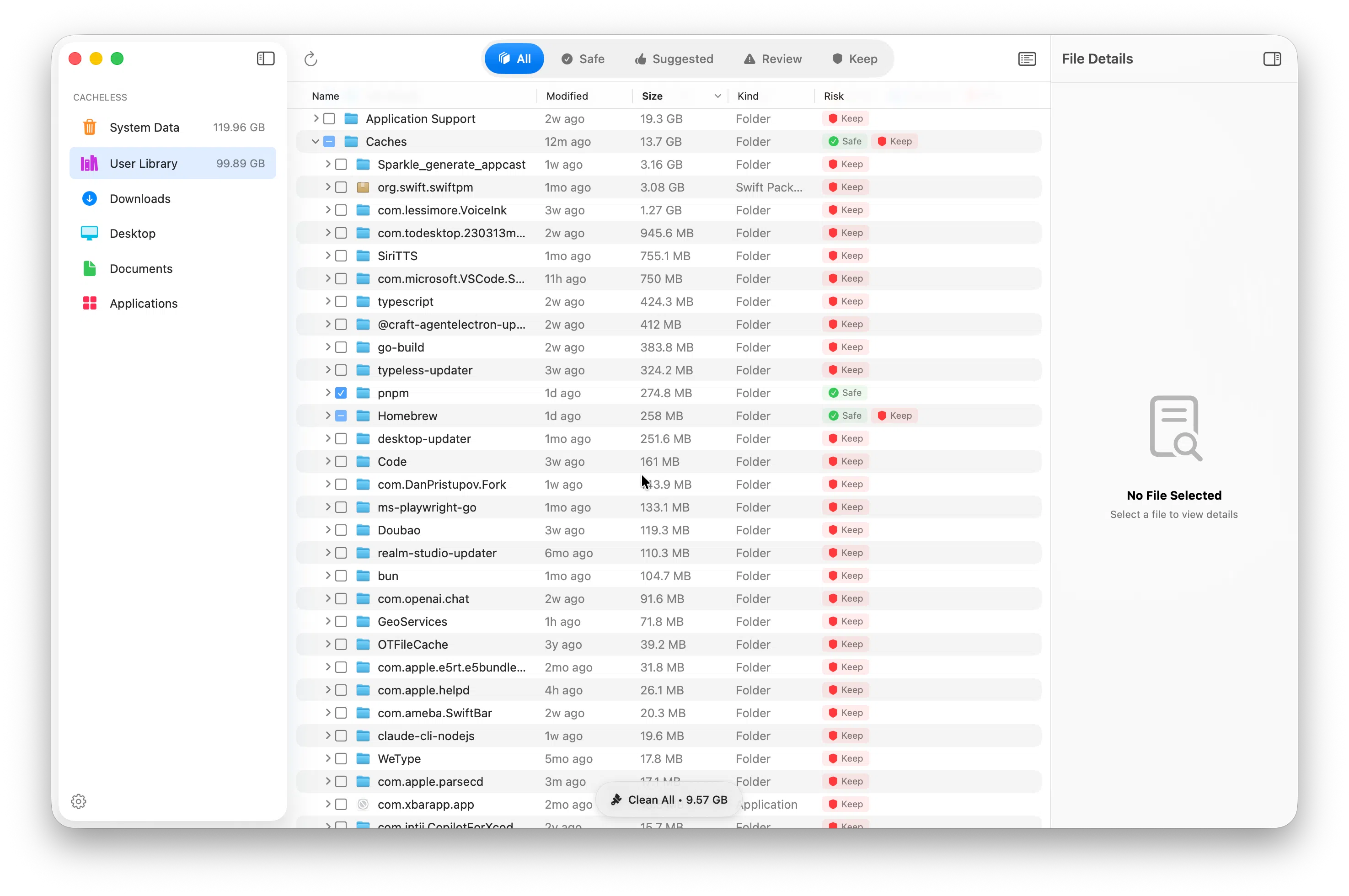
Going through all of this manually works, but it's tedious and easy to miss things. Cacheless scans your entire Mac and surfaces everything that's safe to delete, organized by category and risk level.
Every file gets tagged:
- Safe — old caches, logs, stale temp files. Delete without thinking about it.
- Suggested — probably unnecessary, but worth a glance
- Review — files you should look at before removing
- Keep — Cacheless won't recommend deleting these
The AI analysis feature is genuinely useful here: if you see a folder full of files you don't recognize, you can ask what they are. The app uses only the file path — never the contents — to explain it to you.
For developers specifically, Cacheless handles Xcode DerivedData, Simulator caches, npm, pip, Docker images, and more in one scan. It's one of the few tools that actually understands what those files are rather than just flagging them by size.
How Much Space Should System Data Take?
There's no hard rule, but as a rough guide:
- Under 20GB — you're in good shape
- 20–50GB — normal for active users, worth a quick cleanup
- 50–100GB — Time Machine snapshots or developer caches are likely the cause
- Over 100GB — something specific is eating space; start with Time Machine snapshots and Xcode
After running through the steps above, most people recover 20–60GB without breaking anything.
Will Any of This Delete My Files?
No. Everything covered in this guide is cache, logs, build artifacts, or outdated backups — not your actual documents, photos, or app data. Apps will rebuild their caches next time you use them.
The one thing to be careful about: if you delete an old iPhone backup and then later need to restore that device, the backup is gone. Only delete backups for devices you're confident you won't need to restore.
Wrapping Up
System Data grows slowly enough that most people don't notice it until one day they're almost out of disk space. The fix isn't complicated once you know what you're looking at.
Start with Time Machine local snapshots — those are often the biggest single item. Then work through caches and logs. If you're a developer, clear out DerivedData. Do this once every few months and System Data stays manageable.
If you'd rather not dig through Library folders manually, Cacheless handles all of it in one scan and shows you exactly what it's recommending before you delete anything.
Ready to reclaim your Mac's storage?
See exactly what's taking up space — before you decide what to delete.